Share UCT News article on the UCT WebCMS
Embed UCT News articles into UCT WebCMS articles
If you'd like to include a UCT News article into an article on the Drupal WebCMS. You can create an article on Drupal WebCMS and embed the article from UCT News within.
When creating the article set following as:
Title, image and summary on an article on UCT News, as an example.

On the News Article, right click on the main image and click “Save Image As…”.

Choose a location on your device to the save the image and confirm/save it. You can use this image when creating the article on UCT's WebCMS.
First find the UCT News article you would like to embed.
Example: https://www.news.uct.ac.za/article/-2026-05-22-highest-national-order-for-prof-karen-sliwa-hahnle
When viewing the article, click the Embed icon in the bottom right corner.

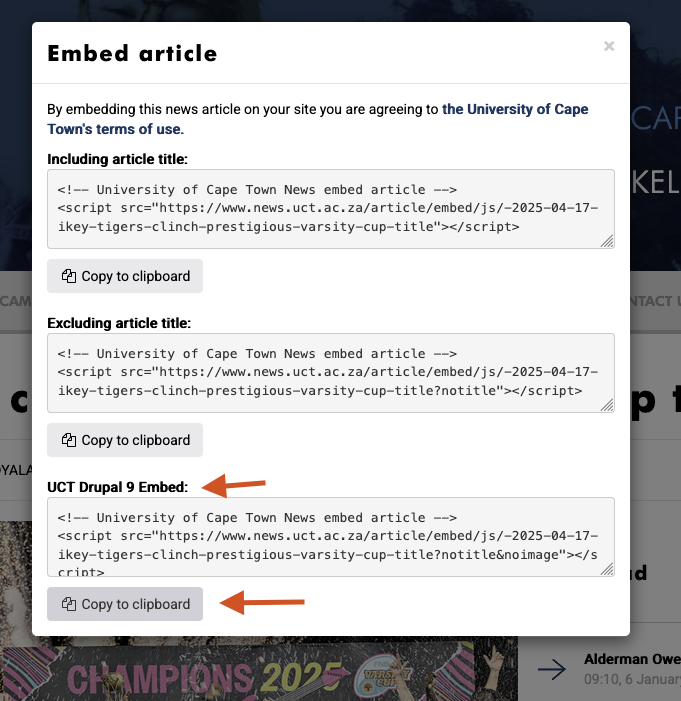
A popup will appear. "Under the UCT Drupal 9 Embed:” heading click the "Copy to clipboard" button.
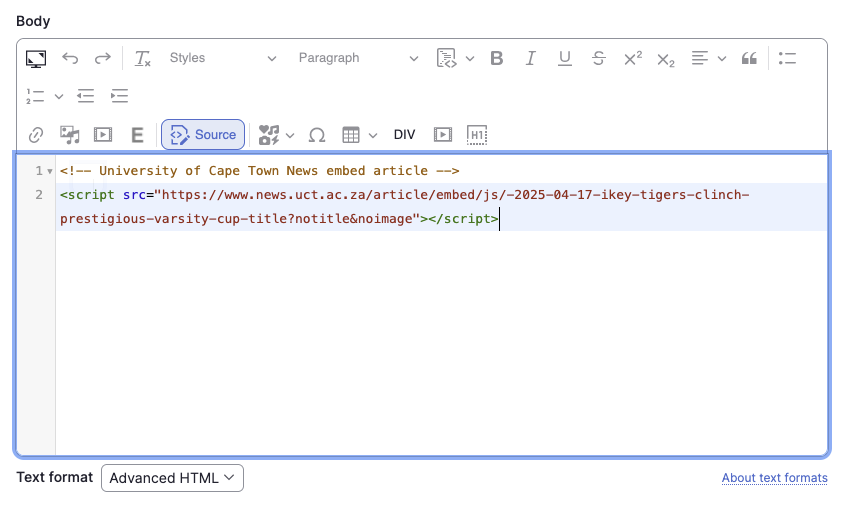
In the WebCMS Article you’ve created you are going to paste this into the Body field source view.
Navigate to the Body field on the Article. Copy and components tab > Body field > Click the Source button.

Past the Embed within the Body field.
Complete any other changes on the WebCMS article, and when you are happy, Create/Save the article.